
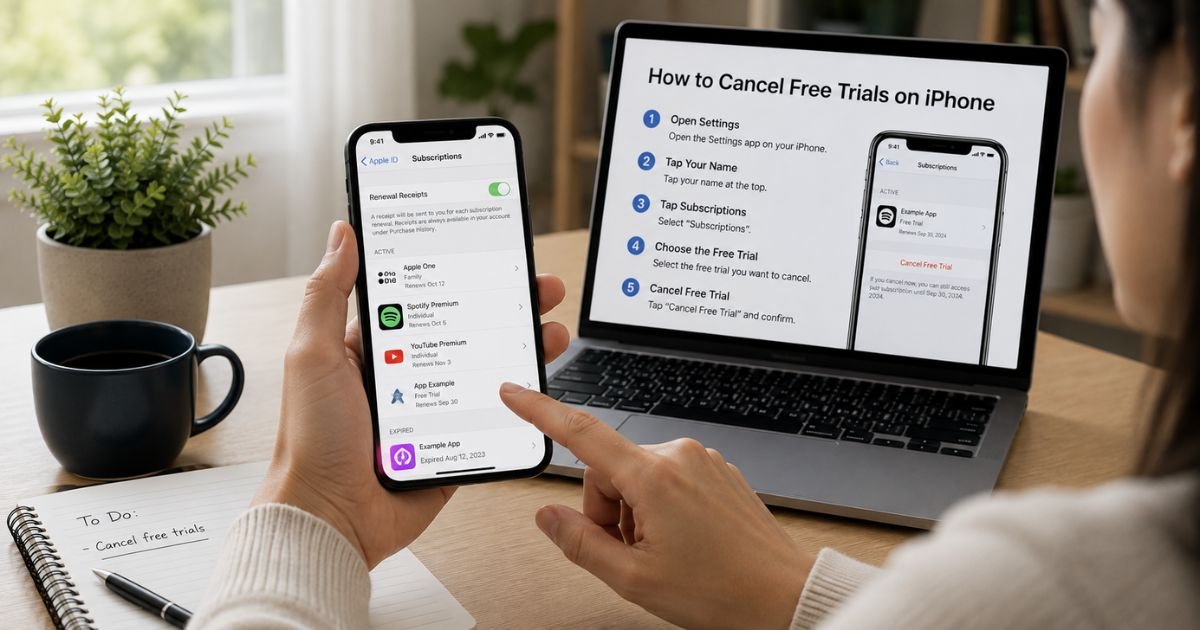
How to Cancel Free Trials on iPhone? [Step by Step Guide]
Have you ever signed up for a free trial on your iPhone, like a streaming service or fitness app, only to worry about that sneaky charge hitting your card once the trial ends? You are not alone.
Plenty of people start these trials for a quick test drive and then scramble to figure out how to cancel free trials on iPhone before it costs a dime.
This guide makes it super simple. You will learn the exact taps to stop any App Store free trial in minutes, plus handy tips to stay ahead of auto-renewals.
The Easiest Way to Cancel Free Trials on iPhone Before Charges Hit
Most free trials you start right on your iPhone get billed through the App Store. That is great news because Apple keeps everything in one spot. Canceling works the same for every subscription, and it stops future payments without losing what you already used during the trial.
The key trick is acting at least 24 hours before the trial ends. Apple gives you that buffer so the charge never happens. Once canceled, you keep access until the trial clock runs out, then it drops back to free or basic.
Step-by-Step Guide to Cancel Free Trials on iPhone
Follow these taps on any iPhone running the latest iOS. It takes under two minutes once you know where to look.
- Open the Settings app on your home screen.
- Tap your name at the very top of the list.
- Scroll down and tap Subscriptions.
- You will see a list of active and recent subscriptions. Find the free trial you want to stop.
- Tap the specific trial or subscription.
- Scroll to the bottom and tap Cancel Subscription or Cancel Free Trial.
- Confirm your choice on the pop-up screen.
Boom, you are done. Apple sends a confirmation email right away so you have proof. If the trial is still active, access ends automatically when the period finishes.
You can also reach the same spot from the App Store app. Tap your profile icon in the top right, then choose Subscriptions. It pulls up the identical list for quick management on the go.
What Happens After You Cancel Free Trials on iPhone
Canceling during the free trial means zero charges ever. Your card stays safe, and you keep using the app until the exact end date shown in your subscription details. After that, it switches to the free version or stops completely.
If you already got charged once, the cancellation still stops the next renewal. Apple does not give refunds for partial months in most cases, but you can request one through their reportaproblem.apple.com site if the timing feels off.
Your Apple ID stays linked, so you can always restart a trial later if you change your mind. No data gets deleted from the app itself.
Troubleshooting If You Cannot Find the Subscription
Sometimes the trial hides in your list. Here is what to do next.
Double-check you signed up with the same Apple ID you are viewing. Switch Apple IDs in Settings if you have more than one.
If it still does not appear, the service might bill directly through their website instead of Apple. In that case, open the app, go to account settings inside it, and cancel there.
For iCloud+ or Apple services, the steps are slightly different. Tap your name in Settings, then iCloud, and manage from there.
Still stuck? Tap the Get Support link at the bottom of the Subscriptions page. Apple connects you fast.
Smart Tips to Avoid Surprise Charges from Free Trials on iPhone
Prevention beats chasing refunds every time. Set a reminder on your phone calendar a few days before any trial ends.
Use a virtual card number from your bank for sign-ups. You can freeze it instantly if you forget to cancel.
Review your subscriptions weekly instead of monthly. Catch everything early and keep small trials from turning into big bills.
Turn off auto-renew right after starting a trial. Many apps let you do this inside their settings too.
Keep a note in your phone of trial start dates. It takes seconds and saves headaches later.
Comparison of Common Free Trial Scenarios on iPhone
| Scenario | Typical Trial Length | Cancellation Window | What You Keep After Cancel |
|---|---|---|---|
| Streaming apps like Netflix | 7–30 days | 24 hours before end | Access until trial expires |
| Fitness or study apps | 7–14 days | Anytime during trial | All your created content |
| Music services like Spotify | 30 days | 24 hours before end | Playlists and downloads |
| News or productivity tools | 7–14 days | Anytime | Basic free version forever |
This quick table helps you spot patterns at a glance. Use it next time you start a new trial.
Extra Angles to Consider for Canceling Free Trials on iPhone
Some trials bundle with family sharing. Canceling on your account stops it for everyone linked.
If you signed up through a promo code or gift, double-check the terms. A few have longer notice periods.
Traveling abroad? Make sure your Apple ID region matches so the subscriptions page loads correctly.
Debit cards give tighter windows for issues. Stick with credit cards for easier protection on disputes.
For non-App Store trials started in Safari, cancel directly on the website. Apple only handles what you bought in the App Store.
How to Cancel Free Trials on iPhone Using Family Sharing
If you share Apple services with family, the organizer controls billing. Log in as the organizer, go to Settings > Subscriptions, and cancel there. It affects the whole group instantly.
Kids or other members cannot cancel on their own. This setup keeps things organized but means one person handles all the stops.
FAQs About How to Cancel Free Trials on iPhone
Q. Can I cancel a free trial on iPhone after it starts without paying anything?
Yes, absolutely. Cancel anytime during the trial and your card never gets charged. Just do it at least 24 hours before the end date to be safe.
Q. How do I know when my free trial on iPhone ends?
Check the exact date in Settings > your name > Subscriptions. It shows right under each active trial. Apple also emails reminders a day or two before renewal.
Q. What if the cancel button does not appear for my free trial on iPhone?
The subscription might already be canceled or billed outside Apple. Try the App Store app or contact the company directly. If needed, reach Apple Support through the Get Support link in Subscriptions.
Conclusion
Canceling free trials on iPhone does not have to be stressful. Open Settings, tap your name, hit Subscriptions, and follow the quick steps to stop any future charges in seconds. Staying ahead with reminders and virtual cards keeps your budget safe and your phone clutter-free.
Check your subscriptions regularly, act early on every trial, and never hesitate to use the built-in support links. Small habits like these prevent surprise bills and give you full control over what you pay for.
Disclaimer
This article shares general information based on public resources, Apple’s official support pages from 2026 and common user experiences. It is not official advice from Apple. Always visit support.apple.com or your iPhone Settings app for your specific account details. Cancellation results can vary.


