
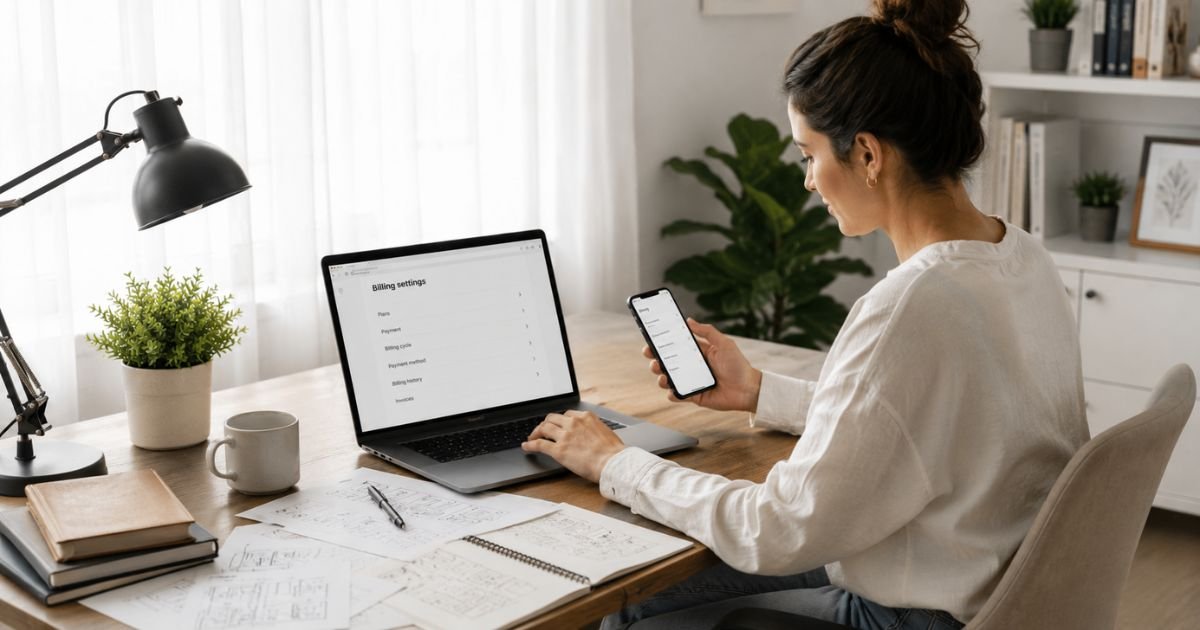
How to Cancel Canva Free Trial Subscription?
Canva is a popular design tool for creating social posts, presentations, videos, and more. It offers a permanent free plan plus paid plans (Pro, Teams, or Business) that often start with a free trial.
The free trial typically lasts 30 days. After it ends, the plan converts to a paid subscription that renews automatically. Charges usually appear on your card as Canva, Apple, or Google.
Deleting the Canva app does not cancel the free trial or subscription. You must cancel through the correct method based on how you signed up.
This guide shows you the steps so you can stop auto-renewal and avoid a recurring charge.
What Is Canva and How Billing Works
Canva lets you design graphics, documents, and videos with templates, stock assets, and AI tools. The free plan includes basic templates, limited storage, and some AI features. Paid plans unlock premium templates, background remover, Brand Kit, more storage, and higher AI limits.
A free trial of Canva Pro or similar plans is often available for about 30 days. Once the trial ends, Canva charges the payment method on file and the subscription renews until you cancel.
Pricing is typically around $15–$18 per month for Pro (lower if billed yearly) and higher for team plans. Prices can vary by region and billing period.
Anyone with the right account access can cancel. For team plans, only owners and administrators can cancel. The charge may show as Canva, APPLECanva, or GOOGLECanva on your statement.
If you signed up on the website, cancel inside Canva. If you signed up in the mobile app, cancel through the App Store or Google Play.
How to Cancel Canva Free Trial or Subscription on the Website
Use this method if you started the trial or subscribed through a web browser on computer or mobile.
- Go to canva.com and log in with the account that has the trial or paid plan.
- Click your profile photo in the top right and select Settings.
- Go to Payments and plans (or Billing).
- Under your current plan, select Cancel plan.
- Select Continue cancellation.
- Choose a reason for canceling, then select Continue cancellation again.
- Confirm by selecting Cancel subscription.
You should receive a confirmation email. Your paid features stay available until the end of the current billing or trial period. After that the account returns to the free plan. Your designs and Brand Kit are not deleted.
Canceling If Billed Through Apple or Google
If you started the free trial inside the Canva mobile app, the subscription is managed by the app store. Uninstalling the app does not cancel it.
On iPhone or iPad
- Open the Settings app.
- Tap your name at the top.
- Tap Subscriptions.
- Find and tap Canva.
- Tap Cancel Subscription and confirm.
On Android
- Open the Google Play Store app.
- Tap your profile icon.
- Tap Payments & subscriptions, then Subscriptions.
- Select Canva.
- Tap Cancel subscription and confirm.
Cancel at least a day before the trial or renewal date ends. After canceling, you keep premium access until the current period finishes.
What Happens After You Cancel
Canceling stops future automatic payments. You keep access to Pro or paid features until the end of the current billing or trial period. After that date the account switches to the free plan.
Your existing designs, folders, and Brand Kit remain available. You can still edit and download them under free-plan limits. Canva does not automatically refund the current period. Refunds, if any, follow Canva’s policy or the app store’s rules depending on where you subscribed.
Some plans also offer a pause option for a few months instead of full cancellation. This appears during the cancel flow if available.
Tips for a Smooth Cancellation
Cancel a day or two before the trial ends. This gives you buffer time.
Log into the exact account and team that holds the subscription. Check your billing email or statement to confirm whether the charge came from Canva, Apple, or Google.
Save the confirmation email and note the end date shown on the Billing page.
If you are on a team plan, make sure you have owner or administrator access. Members cannot cancel.
Common Problems and Solutions
You do not see the Cancel plan button. You may be logged into the wrong account or team, or the subscription is managed by Apple or Google. Check your statement and try the matching method.
You are on a team and cannot cancel. Only the team owner or administrator can cancel. Ask them to handle it.
You were charged after canceling. Confirm the cancellation email arrived and that you canceled before the renewal date. Check for a second account or an app-store subscription.
The mobile app does not show a cancel option. That is normal. Cancel through the App Store or Google Play instead.
Alternatives After Canceling
The free Canva plan still offers millions of templates, basic design tools, limited AI, and 5 GB of storage. Many people find it enough for everyday needs.
Other free or low-cost options include Google Slides, Microsoft Designer, Photopea, or CapCut for video. Test a few to see what works for your projects.
FAQs About Cancel Canva Free Trial Subscription
Q. Will I be charged if I cancel the free trial in time?
No. Cancel before the trial ends and you should not be charged. You keep the paid features until the trial period finishes, then the account becomes free.
Q. Does deleting the Canva app cancel the subscription?
No. Removing the app leaves the free trial or subscription active. You must cancel through Canva Settings or through the App Store / Google Play.
Q. Can I get a refund after canceling?
Canceling stops future charges but does not automatically refund the current period. If you subscribed through the website, check Canva’s refund policy. If you subscribed through Apple or Google, request any refund from them.
Q. What if I am on a Canva Teams or Business plan?
Only the team owner or administrator can cancel. Log in as that role or ask the owner to cancel for the team.
Conclusion
Canceling a Canva free trial or paid plan is straightforward once you know where the billing lives. On the website go to Settings then Billing and select Cancel plan. If Apple or Google billed you, cancel in their subscription settings instead.
Do this before the trial or renewal date ends and you stop the auto-renewal. You keep premium access until the current period finishes, then your account returns to the free plan with all your designs intact.
Check your confirmation email and next statement to make sure the recurring charge has stopped.
Disclaimer
This article provides general educational information based on publicly available details from Canva’s help pages at the time of writing. It is not financial or legal advice. Policies, trial lengths, and steps can change. Contact Canva support or your payment provider (Apple or Google) for help with your specific account.


