
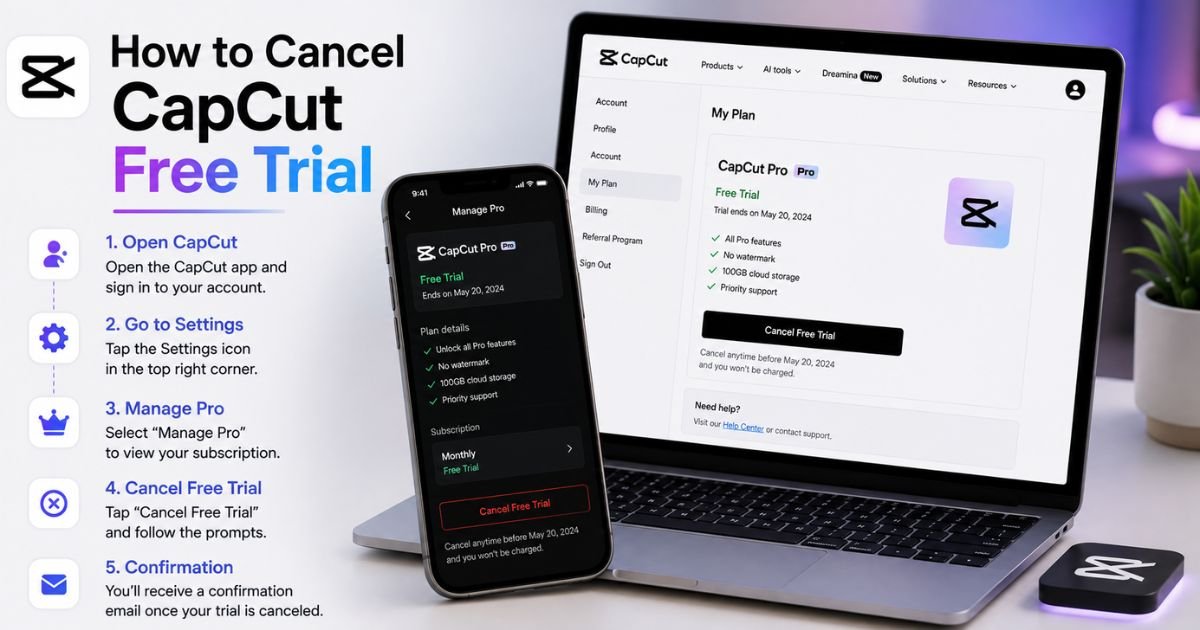
How to Cancel CapCut Free Trial? [Step by Step Guide]
Hey there, video creator! If you’re like me, you probably signed up for CapCut’s free trial thinking, “I’ll just test those pro editing tools for a week and cancel if it’s not my thing.”
But then life gets busy, and suddenly you’re staring at your bank statement wondering why that unexpected charge popped up. Don’t worry – canceling your CapCut free trial is straightforward, and I’m here to make it super simple.
Whether you hopped on for the advanced effects, cloud storage, or team collaboration features, knowing how to cancel CapCut free trial can save you money and stress.
Why Canceling Your CapCut Free Trial Matters More Than You Think
CapCut, the popular video editing app from ByteDance, offers a 7-day free trial for its Pro subscription. It’s a fantastic way to unlock premium templates, AI tools, and no-watermark exports. But here’s the catch: those trials auto-renew into paid plans unless you act fast.
I once signed up for a similar app trial during a late-night editing session and forgot all about it. A month later? Ouch. Canceling early gives you peace of mind.
Plus, with subscription fatigue hitting so many of us, taking control now means more cash for your next camera upgrade or coffee run. Now, let’s get into the practical stuff.
Understanding CapCut Pro and Its Free Trial
Before we jump into the steps, a quick note on what you’re dealing with. The CapCut free trial typically lasts seven days and gives full access to Pro features like unlimited cloud storage, exclusive effects, and faster rendering.
After that, it rolls into a monthly or yearly CapCut Pro subscription – often around $7.99 a month or more for annual plans.
The good news? You keep full Pro access right until the trial ends, even if you cancel today. Just make sure to do it at least 24 hours before renewal to dodge any charges.
Deleting the app alone won’t stop the billing, which trips up a lot of folks.
How to Cancel CapCut Free Trial on iPhone (iOS)
Most users sign up through the App Store, so this is the most common path for CapCut free trial cancellation on Apple devices. It takes under two minutes once you know where to look.
- Open the Settings app on your iPhone – you know, that gray gear icon.
- Tap your name at the very top to access your Apple ID.
- Scroll down and select Subscriptions.
- Find and tap CapCut in the list of active plans.
- Tap Cancel Free Trial or Cancel Subscription (it’ll say one or the other depending on your status).
- Choose a reason if prompted, then confirm the cancellation.
Boom – you’re done! You’ll get a confirmation email from Apple. If you don’t see the option, it might already be set to cancel, or check that you’re logged into the right Apple ID.
How to Cancel CapCut Free Trial on Android Devices
Android folks manage everything through Google Play, which makes cancel CapCut subscription a breeze. Here’s exactly what to do:
- Open the Google Play Store app.
- Tap your profile icon in the top right corner.
- Select Payments & subscriptions, then tap Subscriptions.
- Locate CapCut and tap on it.
- Hit Cancel subscription and follow the prompts to confirm.
Google will show your next billing date and let you know access continues until then.
Pro tip: Do this from the same Google account you used to subscribe – it won’t work otherwise.
Canceling Your CapCut Free Trial on Desktop or PC
Signed up via the CapCut website or desktop app? No problem. You handle CapCut Pro subscription cancellation directly through their platform.
- Head to capcut.com in your browser and log in with your account.
- Click your profile icon in the top right corner.
- Look for Manage Pro, Billing, or Subscriptions in the menu.
- Find the option to turn off auto-renewal or Cancel membership.
- Confirm your choice – it might ask for a quick reason.
If you’re using the desktop app, the steps are the same since billing routes through the web. This method works great if you never touched the mobile version.
What Happens After You Cancel CapCut Free Trial?
Once you cancel, CapCut won’t charge you for the next cycle. You’ll still enjoy all Pro features until your current trial or billing period wraps up. After that, you drop back to the free version with basic tools and watermarks on exports.
No data loss here – your projects, drafts, and edits stay safe in your account. If you’re worried about refunds, CapCut’s policy allows a full one within 14 days of starting the subscription, but only if you haven’t used any Pro features.
For accidental charges, reach out to their support or your app store directly.
Pro Tips to Manage Subscriptions and Avoid Future Charges
Staying on top of trials doesn’t have to be a chore. Here are some real-world habits I’ve picked up that make life easier:
- Set a reminder: Use your phone’s calendar to flag the trial end date minus one day.
- Review regularly: Check your subscriptions monthly in Settings (iOS) or Play Store (Android).
- Use a password manager: Many now track subscriptions and send alerts.
- Try free alternatives first: Apps like DaVinci Resolve or even CapCut’s basic mode might do the trick without the trial hassle.
If you’re juggling multiple creative tools, consider a simple spreadsheet to track start dates, costs, and cancel windows. It sounds old-school, but it works wonders.
Common Issues and Quick Fixes for CapCut Subscription Problems
Sometimes things don’t go smoothly. If the cancel button is missing, double-check you’re using the exact account tied to the subscription. Logged in with Google on iPhone? That can cause mix-ups – try switching accounts.
Another hiccup? App store glitches. Restart your device, update the app, or contact support. For CapCut-specific help, their official site points users to Apple or Google for most billing issues, but you can email support@us.capcut.com for tricky cases.
And remember: Canceling doesn’t delete your account or projects. If you change your mind, you can always resubscribe later – though the free trial might not be available again right away.
FAQs About How to Cancel CapCut Free Trial
Q. Can I cancel my CapCut free trial after it has already started charging me?
Yes, you can still cancel anytime, but you’ll keep access only until the end of the current paid period. To avoid future charges, act before the next renewal. If it’s within 14 days and you barely used it, you might qualify for a refund through Apple, Google, or CapCut support – just explain the situation clearly.
Q. Does canceling CapCut Pro delete my video projects or account data?
Absolutely not! Canceling only downgrades you to the free plan. All your edits, templates, and cloud files stay right where they are. You can keep creating with the basic tools, and your account remains active for future logins.
Q. What if I want to restart the CapCut free trial later on?
Most users can only claim the trial once per account or device. If it’s expired, you might need to wait or create a new account (though this isn’t always allowed under their terms). Check the app store for current promotions, or stick with the free version in the meantime – it’s still pretty powerful for everyday edits.
Conclusion
Canceling your CapCut free trial doesn’t have to be confusing or time-consuming. With these clear steps for iPhone, Android, and desktop, you’ll save yourself from unwanted charges and keep your editing flow uninterrupted. Remember, a little proactive management goes a long way in the world of app subscriptions.
If you’re loving CapCut’s tools but want to explore more options, head over to Apple’s subscription support page or Google’s Play Store help for extra guidance.
Disclaimer
This guide is based on general knowledge and publicly available information as of 2026. Steps may vary slightly depending on your device, app version, or account settings. Always verify directly in your app store or CapCut account for the most accurate instructions. I’m not affiliated with CapCut or ByteDance, and this is not official advice – consult their support if you run into issues.


